
Adding and Importing Organisations
There are three methods for adding Organisations. Select the Organisations tab:

- Adding One Organisation
You can add a single organisation by clicking the + Add Organisation button.

Search Companies House by company name or company number. Select the correct company from the search results and to populate its details automatically, including company name, incorporation date and year end.
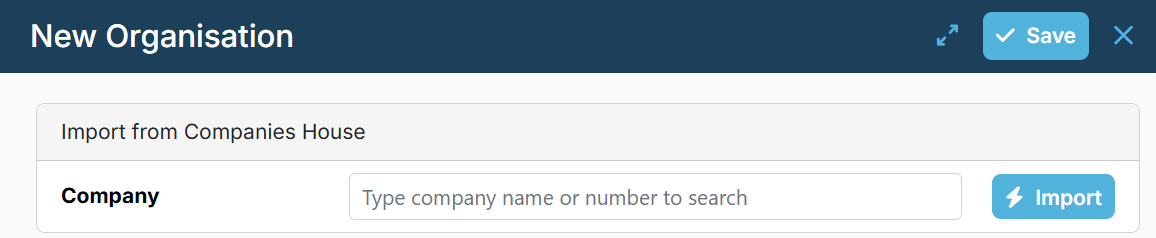
When adding or importing an Organisation, you can specify its relationship type (Client or Prospect). If not specified, the organisation will be created as a Client by default.
If the organisation cannot be found using the Companies House search, enter the relevant information in section below search:
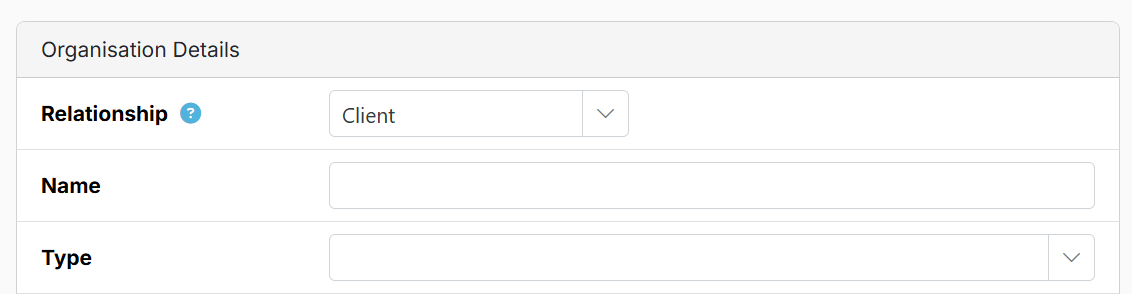
Select the appropriate Organisation Type. See Organisation Types for details of the available types and guidance on which to use.
For bulk import options, click the upload button (small up arrow icon).

2. Importing Organisations Using Company Numbers
Paste or manually enter a list of company numbers into the text box. PracticeFlow will look up each company and import its details from Companies House.

3. Importing Organisations Using a CSV File
Download the organisations-import-template.csv complete it, then save and upload the completed CSV file. Keep the column headings and their order unchanged.

See the detailed guide: Import Template - Organisations
Use the Relationship Type column to import Organisations as Clients or Prospects.
For Organisations with a company number, information such as year-end and confirmation statement dates is updated automatically from Companies House.
If there is a problem with an import you can use the Undo Import button.
If you want to link Individuals to Organisations, import the Organisations first. You can then reference the company numbers in the Individual CSV import.
Complete the relevant service fields to allow Smart Tasks to be created automatically. For example, enter VAT quarters and the VAT registration date for VAT tasks, or payroll frequency and start date for payroll tasks. Including this information reduces manual setup
See Triggering Smart Tasks for the minimum required information. Conversely, omitting certain fields, such as the engagement letter date, will generate an engagement letter task.