.png)
How Client Information on Setup Affects Tasks
PracticeFlow works differently from many practice management systems. You do not have to select a list of services or tasks that apply to each client.
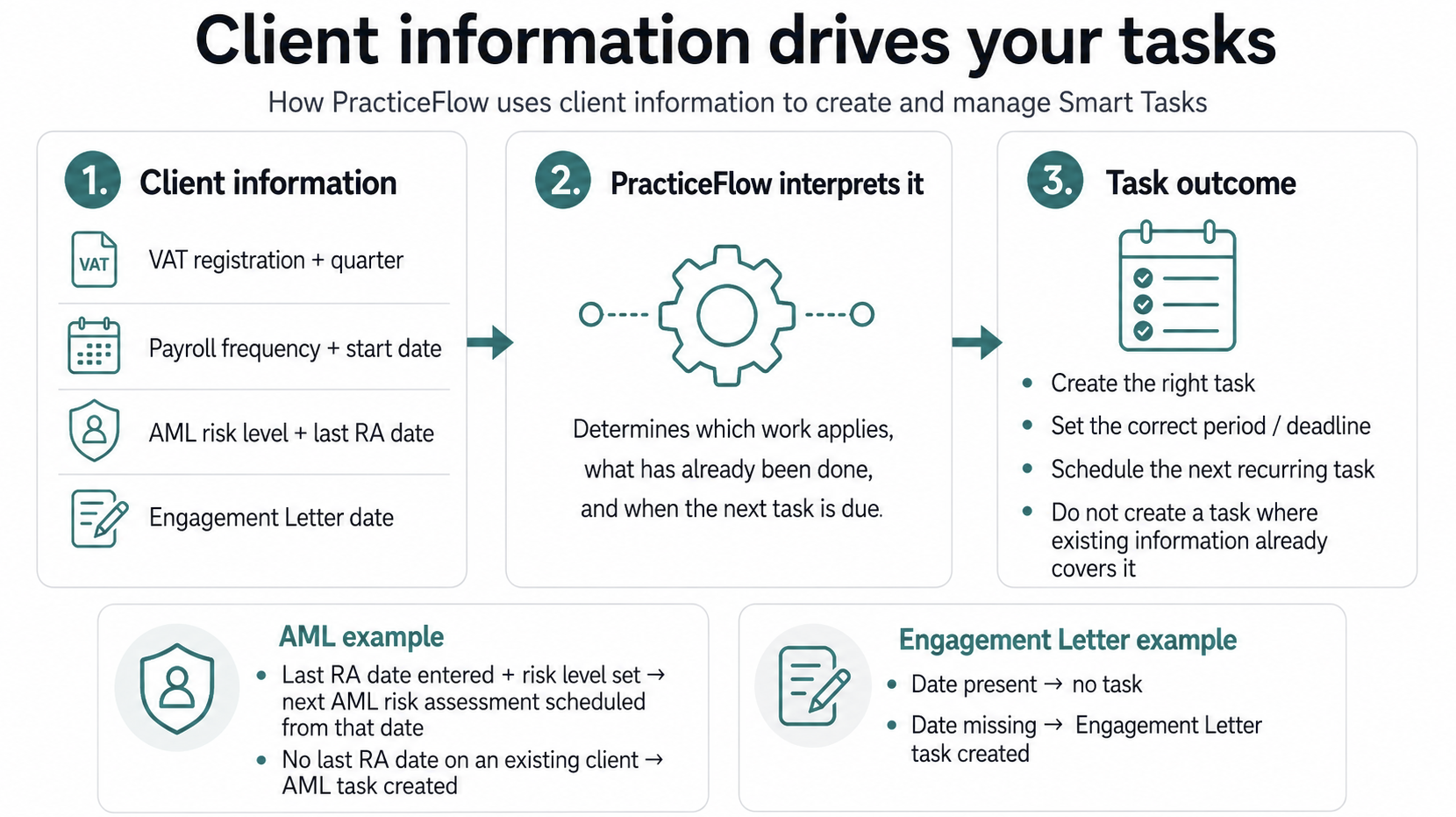
Instead, tasks are controlled automatically by the information held against the client. Adding or omitting particular information tells PracticeFlow which Smart Tasks are required and when they should start or next become due.
This makes it important to add the correct information when setting up existing clients. Of course you can always add the necessary information later, but if you have a lot of clients you can save time by getting right when you initially setup your PracticeFlow account.
Adding existing clients
If you are moving an established client into PracticeFlow, it is likely that some work may already have been completed before you started using the system.
Where relevant, enter this existing information so PracticeFlow starts from the correct position rather than treating the client as though they are completely new.
For example:
- AML Risk Assessment – enter the client's current risk level and the date of their latest risk assessment. PracticeFlow uses this information, together with the review frequency set in Account Settings, to manage the next risk assessment.
- Engagement Letter – if an engagement letter is already in place, enter the Engagement Letter Date. If the date is left blank, PracticeFlow will create an Engagement Letter task.
- VAT – VAT registration date and VAT quarters tell PracticeFlow that VAT Returns are required and determine the relevant periods.
- Payroll – payroll frequency and the start-from date determine whether Payroll tasks are created and when they begin.
- Bookkeeping – bookkeeping frequency and the start-from date determine the recurring Bookkeeping tasks.
The same principle applies to other Smart Tasks: client information determines whether the task is relevant and provides the dates or other information PracticeFlow needs to manage it.
Why this matters
Entering only basic client information may not give PracticeFlow enough information to reflect the work you already provide or have already completed.
For existing clients, adding the relevant service information and historical dates during setup helps ensure that:
- the correct Smart Tasks are created;
- tasks start from the correct period or date;
- previously completed work is not treated as outstanding where the relevant date suppresses a task; and
- your Tasks and Dashboard give you an accurate view of the work that actually needs attention.
You can add or correct client information later, but completing it during initial setup gives you a more accurate task list from the outset.
Minimum information for Smart Tasks
Each Smart Task has its own minimum information requirements. In the client side panel, the lightning icon identifies fields used to trigger Smart Tasks.
See Triggering Smart Tasks for the minimum information required for each Smart Task.