.png)
Portal Form Requests [7]
Form requests allow structured data to be collected from clients.
Creating forms (one-time setup)
Before adding a form request, the form must exist.
- Go to Settings⚙️ > Forms.
- Create a new form (“Add Form”)
- Add fields as required.
Field configuration rules
Each field must have:
Field Name
- Continuous text, no spaces, underscores allowed.
- Must be unique.
- Used internally for identifying data.
- Not visible to the client.
Field Label
- Client-facing text explaining what information is required.
- Fields can be marked as required.
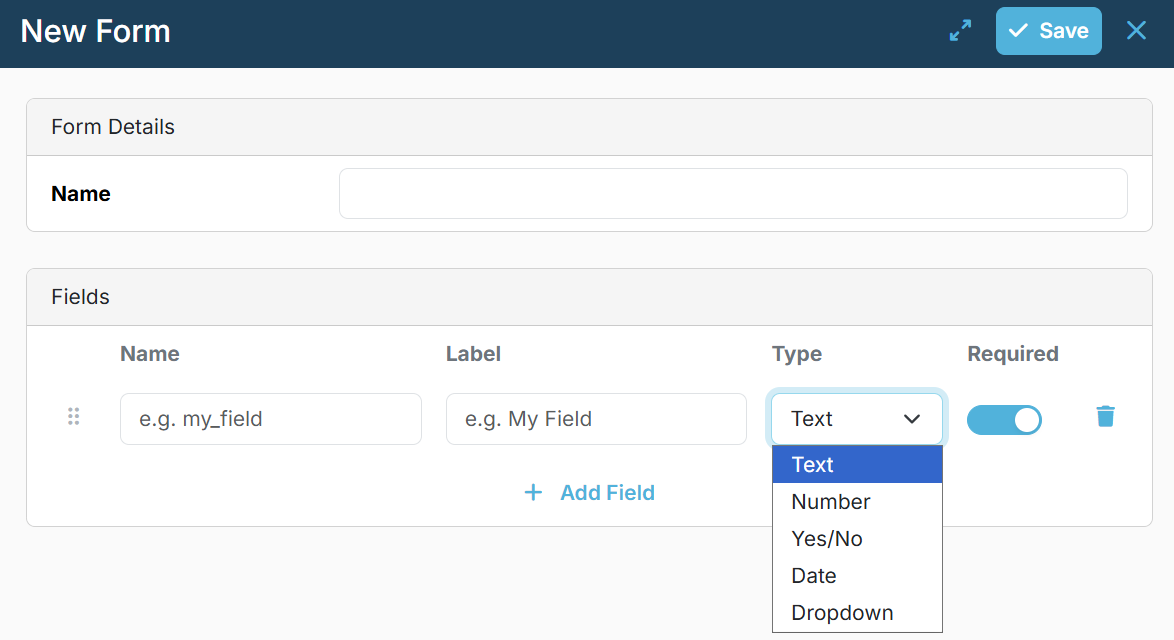
Available field types
- Text
- Number
- Yes / No
- Date
- Dropdown (with predefined options)
Forms can be created in advance and reused across tasks.
Adding a form request to a task
- Open the task.
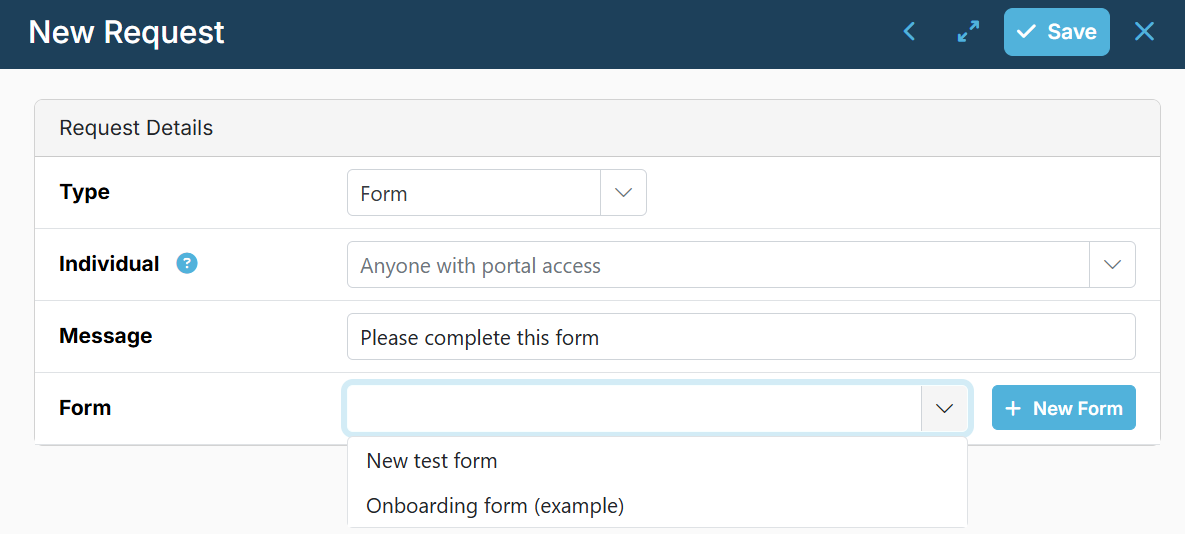
- Add a Portal Request, select Type: Form.
- Select:
- The individual who should complete the form, or
- Leave unassigned if any linked individual may complete it.
- Optionally add a message.
- Select an existing form or add new form.
- Save the request.
Within the task, you can:
- See who submitted the form.
- View submitted values for each field.
- Copy values for use elsewhere in PracticeFlow or externally (for example Excel).
Note: Values can be copied individually. There is no bulk export yet.
Forms - Client experience
- The client sees the form in the portal.
- Required fields must be completed before submission.
- The client can:
- Save a draft and return later.
- Resume a partially completed form.
Once submitted:
- The form is locked.
- Submitted values cannot be changed.
- The client cannot reopen or edit the submission
Next article: Portal Upload Requests [8]