.png)
Checklists – Creating and using checklists
Checklists provide a structured set of steps to follow when completing a task.
They can be used with:
- One-off task
- Recurring tasks
- Smart Tasks
A checklist can be created directly on an individual task or selected from a reusable Checklist Template.
Checklist Templates
Checklist Templates are managed from:
Settings > Checklist Templates
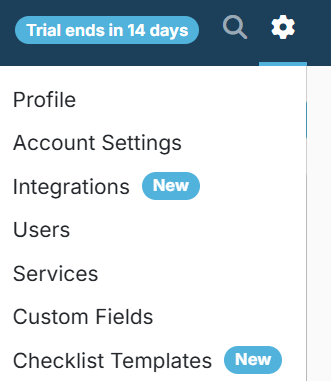
PracticeFlow includes standard templates covering common work such as accounts, bookkeeping, VAT, payroll, tax, and AML. You can edit these templates to reflect your firm’s processes or create your own.
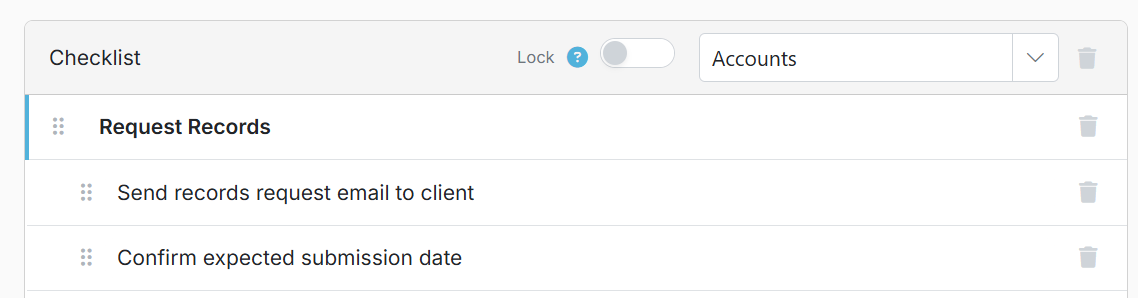
Templates can contain either one or two levels
- One level: every item can be ticked as complete.
- Two levels: detailed checklist items are grouped beneath headings or phases.
Items can be added, removed, edited or reordered. You can also move items left or right to change whether they are a heading or a checkable item.
Adding a checklist to a task
A checklist can be added when creating or editing:
- One-off tasks
- Recurring task schedules
- Smart Task Templates
Select the required checklist from the Checklist Template dropdown.
The checklist will then appear on the task, where each item can be ticked as work is completed.
You can also add, remove or amend checklist items directly on an individual task, unless the checklist has been locked.
Checklist completion history
When a checklist item is completed, PracticeFlow records:
- The date and time it was completed
- The user who completed it
The completion date is shown against the checklist item in the task side panel. Hover over the completed item to see the date, time and the user who completed it. This provides a detailed record of who completed each step and when.
Checklist completion details are not currently available as separate fields in the Tasks grid column chooser, but are available through the PracticeFlow API.
Checklist progress
Checklist progress is specific to the individual task and client.
The task grid can display:
- The total number of checklist items
- The number of items completed
- The next incomplete item
The checklist used for a new task depends on the task type:
- Recurring tasks: the checklist is taken from the recurring task schedule.
- Smart Tasks: the checklist is taken from the Smart Task Template.
- One-off tasks: the checklist applies only to that individual task.