
Adding and Importing Individuals
There are three methods for adding Individuals to PracticeFlow accessed by selecting either the Individuals or Organisations tabs:

- Adding One Individual
Select the Individuals tab. You can add a single individual by clicking the + Add Individual button:

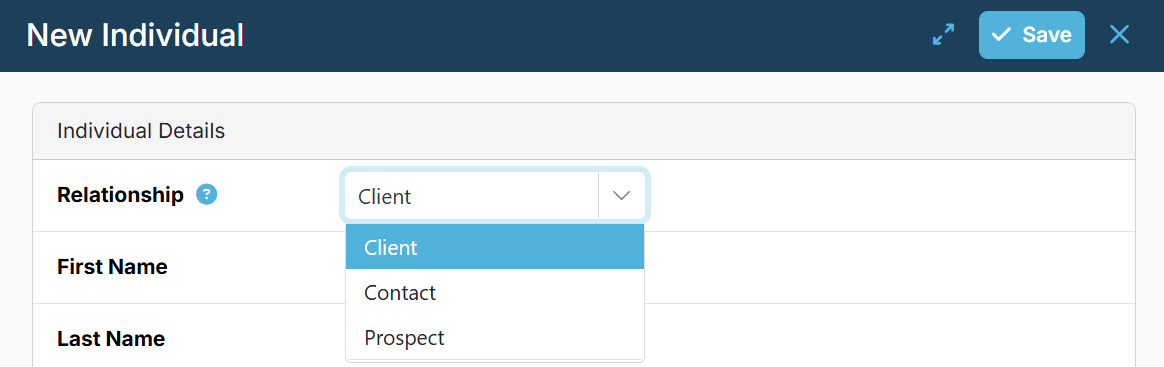
When adding an individual, you can specify the relationship type (Client, Prospect, or Contact). If not specified, the individual will be created as a Client by default.
- Importing Individuals
For bulk imports, select the Individuals tab, then click the upload button (small up arrow icon). Download individuals-import-template.csv, complete it, then save and upload the completed CSV file. See the detailed guide: Import Template - Individuals.
Use the Relationship Type column to import individuals as Clients, Prospects, or Contacts.
You can also link Individuals to Organisations by entering the Companies House company number. The Organisation must already exist in PracticeFlow before you import the Individuals. If no matching Organisation is found, the company number is discarded and no link is created.
If the Organisation has no company number, such as a sole trader, create the link after importing by selecting the Organisation by name from the Individual side panel.

- Add Individuals From A Companies House Organisation
If the individuals you wish to add are listed as Officers (directors and secretaries) or PSCs at Companies House then you can quickly add them using the following steps:
- Select the Organisation tab
- Select the Organisation client to open the side panel
- Select Contacts from the side menu on the left.
Example: If this is a new client with no linked individuals you will see:
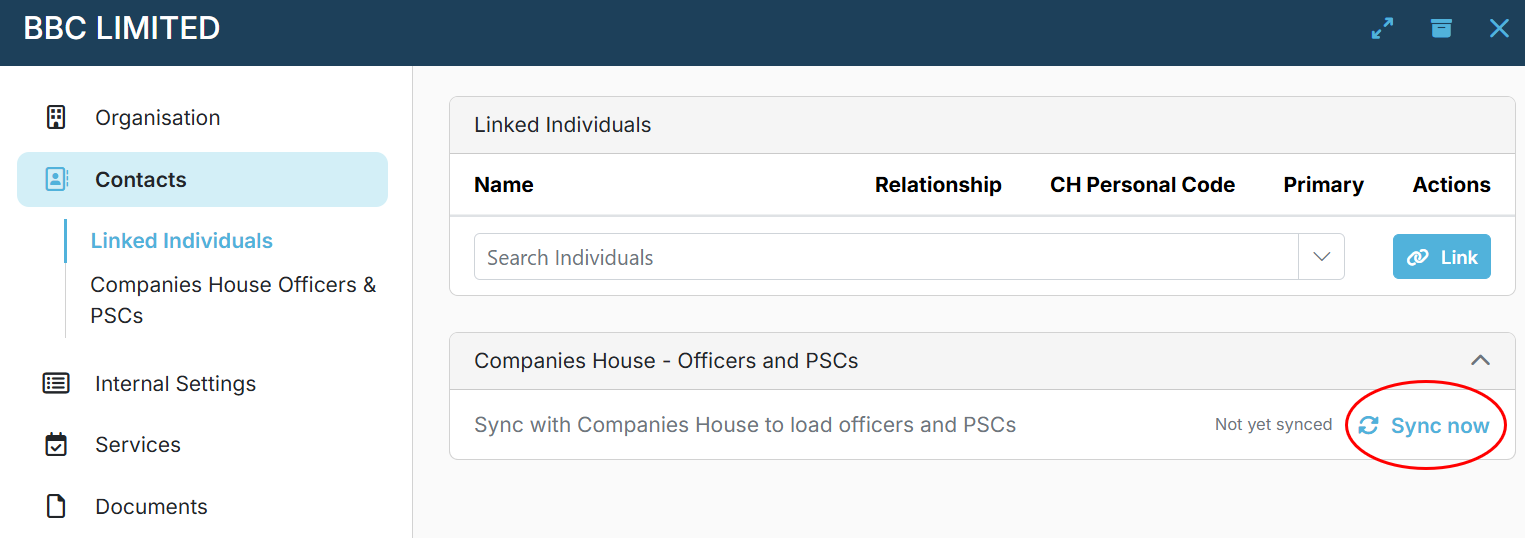
Click Sync Now, to populate the lower part of this display with information from Companies House:
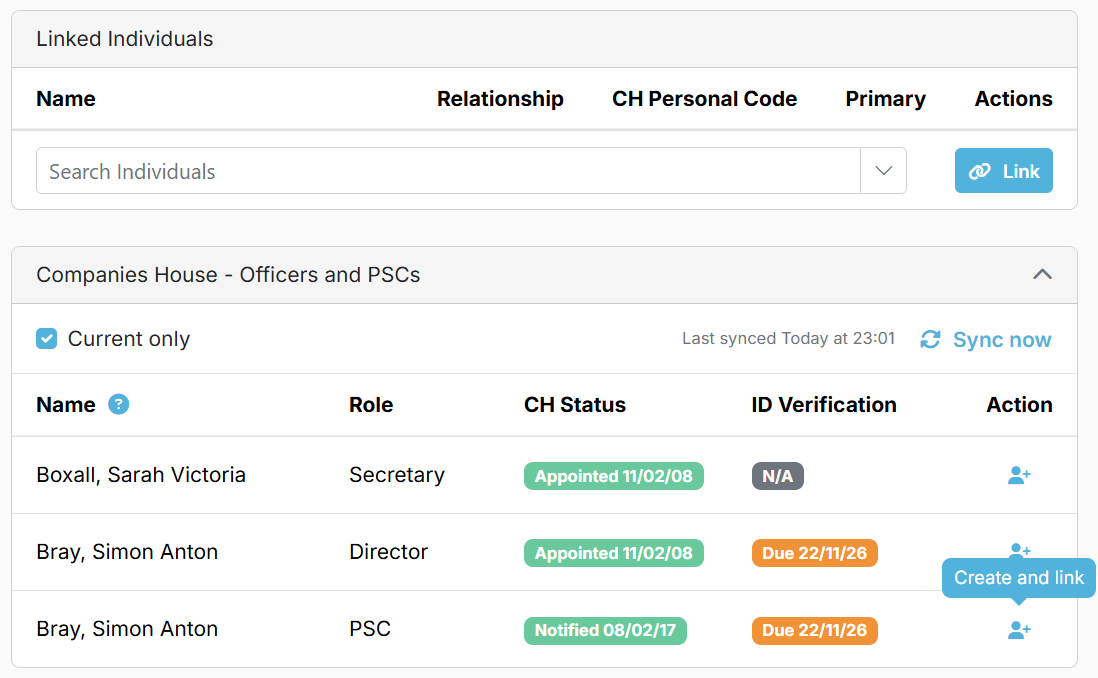
The action buttons on the far right of the screen allow you to create and link one or more individuals from the officers and PSC's shown. The default relationship is Contact but prior to saving you can select Client or Prospect before saving. Each selected person is added to your Individuals list and linked to the Organisation. These names then appear in the upper section:
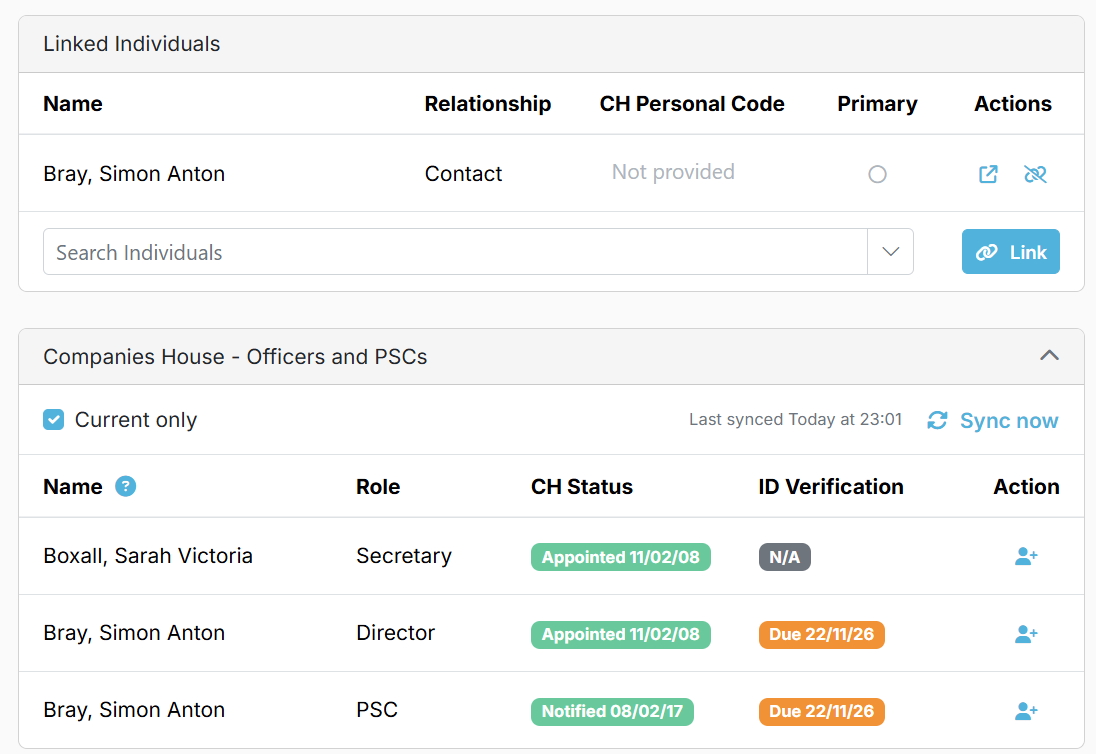
You can jump between Individual and Organisation using the link symbol.
There is also a widescreen view that provides additional information from Companies House and shows related information from your Individual record if populated.