
How to delete tasks
How you delete a task depends on how it was created. One-off tasks can be deleted directly. Recurring tasks and Smart Tasks are managed through the schedule or template that created them.
Deleting a recurring task schedule or Smart Task template removes all its incomplete tasks and stops future tasks being created. If you only want to remove one task but keep future tasks running, contact PracticeFlow Support for guidance.
One-off tasks
- Open the task.
- Click Delete in the top right-hand corner.

Recurring tasks
Recurring task schedules create tasks for individual clients. A schedule can also be copied and amended to create tasks for another client.
There is no Delete button on an individual recurring task. To delete it, you need to delete the recurring task schedule that created it.
- Go to Tasks and click Recurring.
- Find the relevant recurring task schedule.
- Click the bin icon.
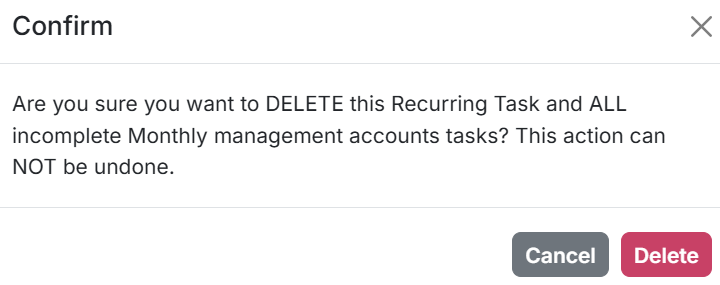
- Read the warning, then click Delete to confirm.

Deleting the recurring task schedule removes all incomplete tasks created by that schedule and stops it creating future tasks. There may be more than one incomplete task.
Completed recurring tasks are not affected.
Deleting a recurring task schedule cannot be undone.
Tasks with client portal requests attached
If an incomplete task has portal requests attached, the recurring task schedule’s Delete button is disabled. Complete the task if the work is finished, or delete the attached requests before deleting the schedule.
Smart Tasks
Smart Tasks are created by Smart Task templates. A template can apply to multiple clients, including clients selected by type, and uses triggers and update rules to create and maintain their tasks.
There is no Delete button on an individual Smart Task. Deletion is managed through the Smart Task template that created it.
Alternatives to deleting a Smart Task template
You can disable a Smart Task template in its entirety, or disable the relevant service for an individual client.
To disable it for an individual client, open the client side panel, select the relevant service, such as Accounts or Confirmation Statements, and disable it.
Do not delete the whole Smart Task template if you only want to stop Smart Tasks for one client. The template may also apply to other clients.
Deleting a Smart Task template
- Open the relevant Smart Task template.
- Select the delete option.
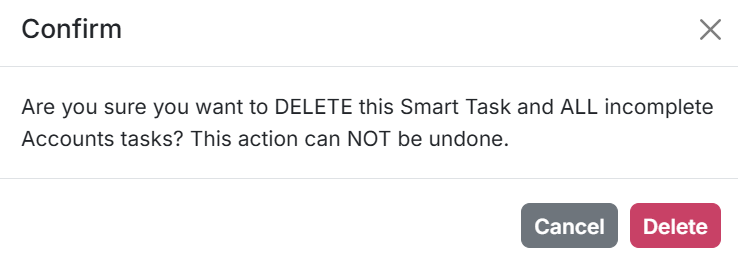
- Read the warning, then click Delete to confirm.
Deleting the Smart Task template removes all incomplete tasks created by that template across the clients it applies to and stops it creating future tasks.
Completed Smart Tasks are not affected.
Deleting a Smart Task template cannot be undone.
If you delete a Smart Task template by mistake, contact PracticeFlow Support for help if you want to recreate it.