.png)
Creating Recurring Tasks
Recurring Task Schedules are used for work that repeats at a fixed interval for a particular client or record.
The important distinction is that a schedule is not a task.
The schedule defines when tasks should be created. Each time the schedule runs, PracticeFlow creates a separate task from that schedule.
For example, a weekly schedule may create a new task every week. If earlier tasks have not yet been completed, you could therefore have two or three separate tasks for the same client visible at the same time.
Schedules and tasks are shown separately
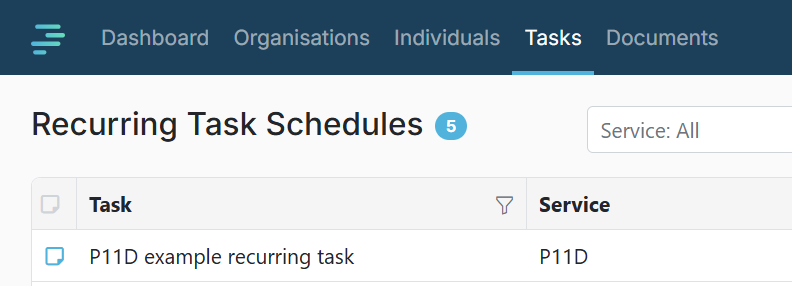
Owner and Admin users can select Recurring at the top of the Tasks screen to view Recurring Task Schedules.
This view shows the recurring schedules themselves. It does not show the individual tasks that have been created from those schedules.
Recurring Tasks created by a schedule appear separately in the Current task view along with all other task types - one-off tasks and tasks created by smart task templates.
This means that when you open a task in the Current view, you are looking at that individual task, not the Recurring Task Schedule that created it.
Creating a Recurring Task Schedule
Recurring Task Schedules are available to Owner and Admin users.
From the Tasks screen:
- Select Recurring.
- Click + Add Task.
- Complete the schedule details.
- Click Save.
Once created, the schedule will generate separate tasks according to the recurrence you have set.
Editing a Recurring Task Schedule
Select Recurring to view the list of schedules and open the schedule you want to amend.
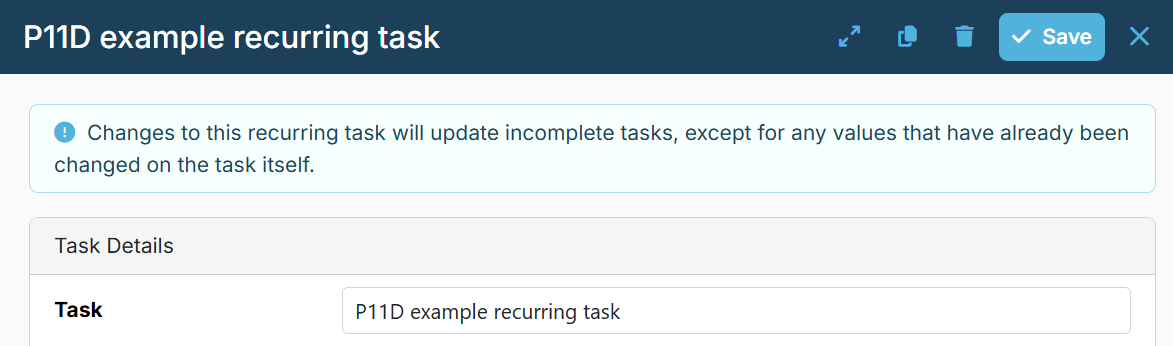
Changes made to a Recurring Task Schedule will also update the incomplete tasks already generated from that schedule, except where a value has already been changed on an individual task.
For example, if you change a value on the schedule, PracticeFlow will update that value on its incomplete tasks unless that same value has previously been changed directly on the task itself.
This allows individual tasks to be amended where necessary without those changes subsequently being overwritten by changes to the schedule.
Copying a Recurring Task Schedule
Recurring Task Schedules can also be copied.
This is useful where the same recurring work is required for another client. You can copy an existing schedule and amend the client or other details rather than creating the schedule again from scratch.
Recurring Task Schedules and Smart Tasks
Recurring Task Schedules are separate from Smart Tasks.
A Recurring Task Schedule is created manually for a particular client or record and then generates tasks at the interval you specify.
Smart Tasks use PracticeFlow templates and client-specific information to generate recurring compliance work automatically.
Staff users do not have access to Recurring Task Schedules.