.png)
Completing Tasks
You can update task progress in two ways: directly from the task grid or from the task side panel.
Task grid
Click the various icons on the task row to update progress as follows:
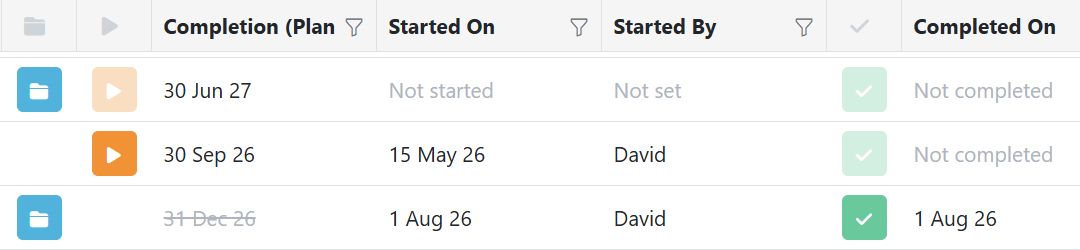
The status icons allow you to update a task directly from its row in the task grid:
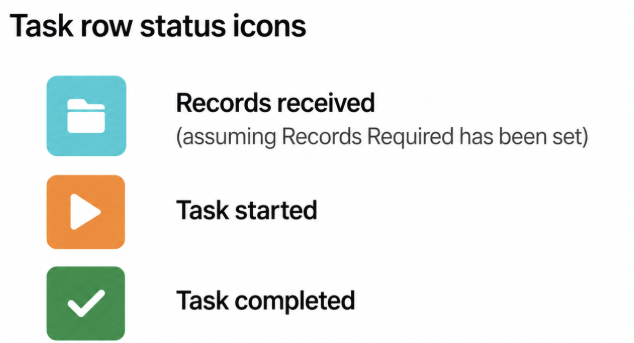
- Select the blue folder when the client’s records have been received. This option is available only where Records Required has been set.
- Select the orange arrow when work on the task begins. PracticeFlow records the started date and the user who updated it.
- Select the green tick when the task is complete. PracticeFlow records the completion date and the user who completed it.
Audit Trail
Use the Column Chooser to display:
- Started Date
- Started By
- Completed Date
- Completed By
These columns show when a task was started and completed, and which user recorded each action.
Task Side Panel
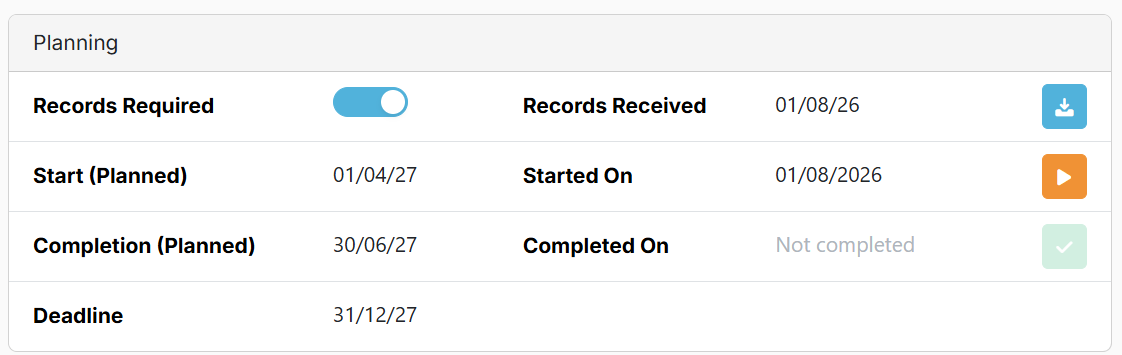
Click anywhere on the task row to open full task details, then in the planning section click the same icons or enter the date manually for records received, started and completed.
Once a task has been completed, it will only be visible in the task list if you select “completed” from the task drop down filter.