.png)
Viewing and Filtering Tasks
The Tasks tab allows you to view and manage all tasks across organisations and individuals.
For Owner and Admin users, the buttons at the top of the Tasks screen allow you to switch between:
- Current – individual tasks
- Recurring – recurring task schedules
- Smart – Smart Task Templates

Staff users only see the + Add Task button. They do not have access to recurring task schedules or Smart Task Templates, so the Current, Recurring and Smart buttons are not shown.
Staff users can still create and manage one-off manual tasks.
Filtering tasks
Use the filters at the top of the task list to narrow down the tasks shown.
Available filters include:
- Service – select a specific service, such as Payroll
- Client, Contact or Prospect – select a particular record
- Deadline – for example, tasks due next week or within 60 days
- User – view tasks for all users or a particular user
- Status – view incomplete tasks or select a particular task status, including Scheduled, Started and Completed
You can use more than one filter at the same time.
Sorting tasks
Click a column heading, such as Client Name or Deadline, to sort the task list by that field.
Choosing which columns to display
Use the Column Chooser at the top of the task list to select which fields are displayed. This is the middle button in the button block shown below:
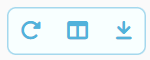
Many additional fields are available but are not shown by default. Columns can also be dragged into a different order.
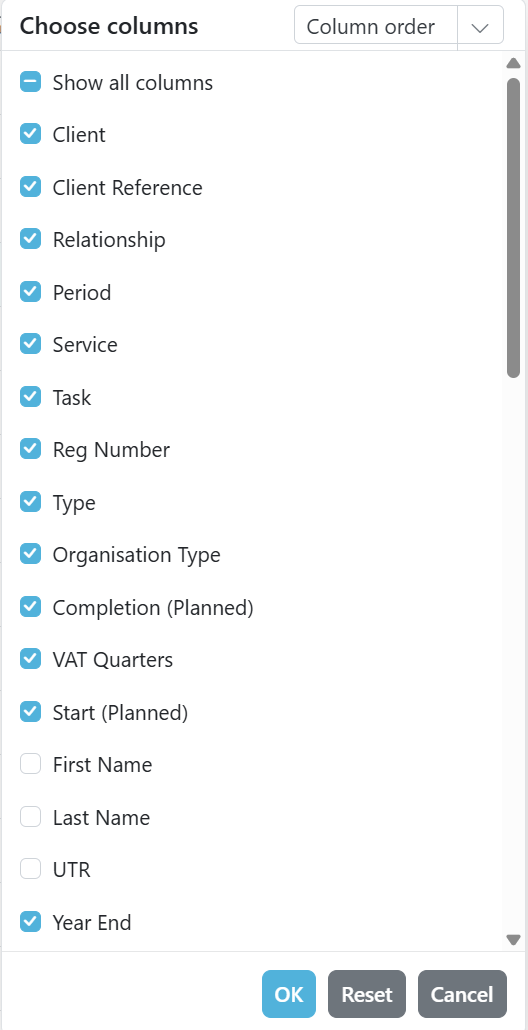
Use Reset in the Column Chooser to restore the default columns and clear any filters.