.png)
Assigning Users to Tasks
Smart Tasks are assigned automatically based on Smart Task templates and client-level settings.
A Smart Task template can also be configured to assign tasks to a specific user. This setting applies to all tasks created from that template.
Each client has an Account Manager and can have one or more Service Managers assigned for specific services. These settings are held at the client level and are used each time a Smart Task is created.
If a Smart Task template is set to Account Manager (default), the system looks at the client record and assigns the task to the Account Manager for that client.
If the client has a Service Manager assigned for a specific service (for example VAT), and a task is created for that service, the system assigns the task to the relevant Service Manager instead of the Account Manager.
Assignment follows this order:
- Smart Task template (Account Manager by default, or a specific user if selected)
- Service Manager (if the client has a Service Manager for that service)
- Task-level assignment (manual reassignment)
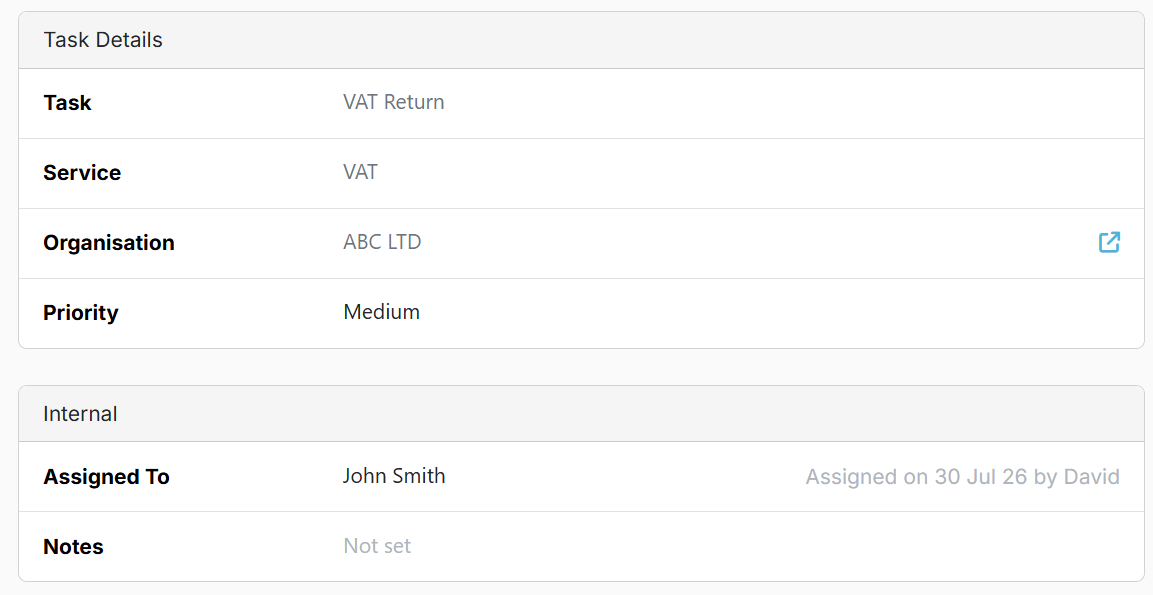
Tasks are reassigned manually at the task level by selecting the task in the Tasks tab and updating the Assigned To field in the internal section.
When a task is reassigned, a notification appears beside the new assignee showing who assigned the task and when this was done.
The new assignee can also choose to receive an email notification when a task is assigned to them.
Final note on task assignment priority
If a task is manually reassigned at the task level, that assignment takes priority until the task is completed.
When the next Smart Task is generated, assignment follows the standard order. A specific user set in the Smart Task template takes priority. If no specific user is selected and the template is set to Account Manager, the system will assign the task to the Service Manager if the client has a Service Manager for that service. Otherwise, the task is assigned to the Account Manager.